After installing the Website app, Odoo guides you through a simple 4-step wizard to set up your website. This guide walks you through each step.
Overview
The Website Setup Wizard helps you configure:
- Your website type and purpose
- Your business industry
- Your main business objective
- Color scheme and branding
- Initial pages and features
Step 1: Choose Your Website Type
First, select what kind of website you want to create:
- A website - Standard business website with pages
- An online store - eCommerce website to sell products
- A blog - Content-focused blog website
- An event website - For conferences, meetups, and events
- An eLearning platform - Online courses and training
Click on your preferred option to continue.
Step 2: Define Your Business Type
Next, tell Odoo about your business:
- Type your business type in the text field (e.g., "Cosmetics Store", "Restaurant", "Law Firm")
- Odoo will show autocomplete suggestions based on your input
- Select the most relevant option or type your own
This helps Odoo select appropriate images, content, and templates for your industry.
Step 3: Select Your Main Objective
Choose the primary goal for your website:
- Get leads - Capture contact information from visitors
- Develop the brand - Build brand awareness and presence
- Sell more - Drive online sales and conversions
- Inform customers - Share information and resources
- Schedule appointments - Allow online booking
Odoo will optimize your website features based on this selection.
Step 4: Choose Your Color Palette
Select colors for your website:
- Browse the grid of pre-designed color palettes
- Each palette includes 3 complementary colors
- Click on a palette to select it
- Or upload your logo to auto-detect brand colors
Step 5: Add Pages and Features
Finally, select which pages to include on your website:
Available Pages:
- About Us - Company information
- Services - What you offer
- Pricing - Plans and pricing
- Privacy Policy - Legal compliance
- News/Blog - Articles and updates
- Success Stories - Case studies
- Career - Job listings
- Shop - eCommerce store
- Events - Event listings
- Forum - Community discussions
- Live Chat - Real-time support
- eLearning - Online courses
Click on each page card to select or deselect it. Selected pages show a green checkmark.
Build Your Website
Once you've made your selections, click the "Build my website" button. Odoo will:
- Apply your colors and design
- Search for relevant images
- Adapt building blocks to your style
- Generate inspiring text content
- Activate the selected features
This process takes about 30-60 seconds. When complete, you'll see your new website homepage!
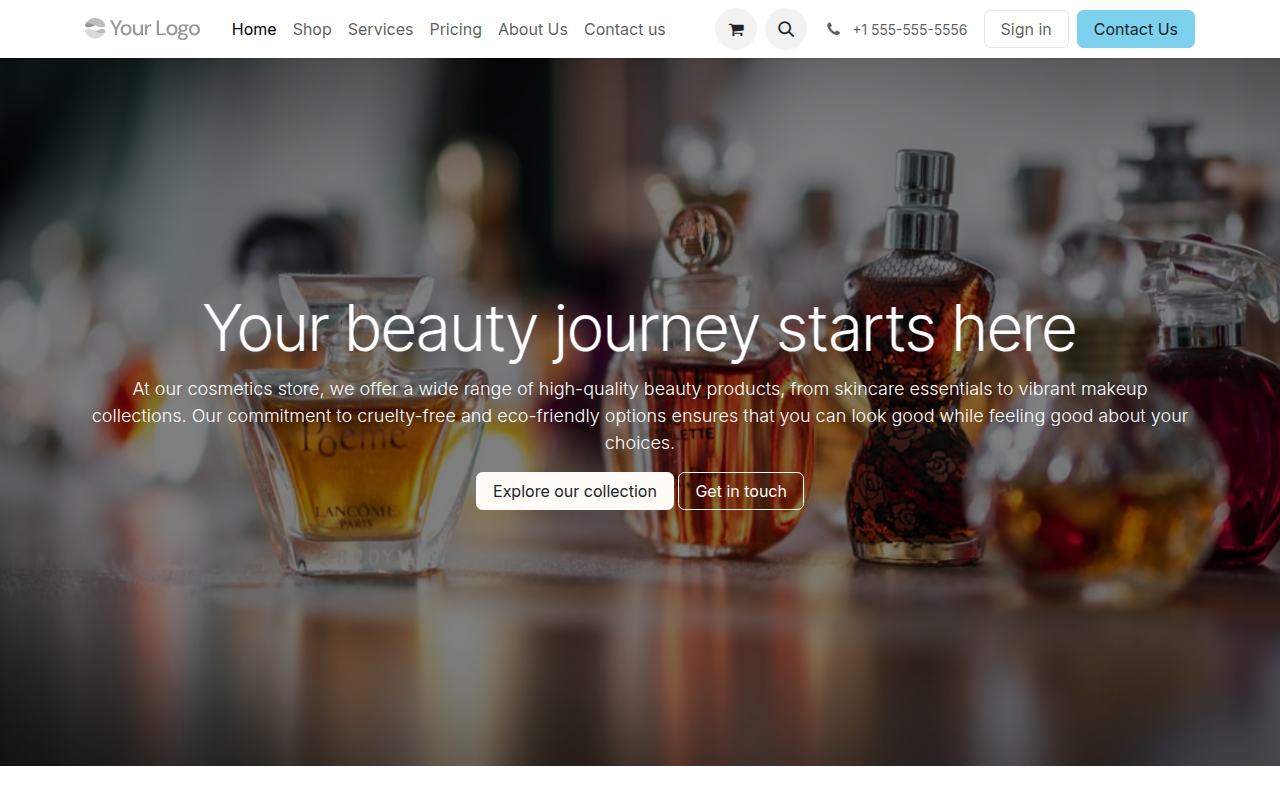
Example of a generated website homepage